
App · Mobile · Install
OzzyBet app install on iOS and Android
There is no OzzyBet app in the Apple App Store or on Google Play. What you install instead is a shortcut to the mobile site, added to your home screen, and it opens in its own window without the browser address bar. The install takes under a minute on both systems and needs no file download.
Add to Home Screen · iOS and Android
The steps below are the same for the AU, NZ, CA and DE editions of the site. If you are looking for the welcome offer instead of the install, the bonus page covers it. This guide is about getting the site onto your phone properly.
What you are actually installing
A home-screen shortcut is a bookmark with a nicer icon. It does not run code on your device and it does not hold a copy of the site. When you tap it, your phone opens the mobile site in a stripped-back browser view that hides the address bar and the tab strip, which is why it feels like an app.
That distinction matters for a few practical reasons. Because nothing is stored locally, the shortcut always shows the current version of the site, including any change to the cashier or the promotions tab. Because nothing is installed from a store, there is no app update to run and no store review process between you and a fix. And because the shortcut is just a link, deleting it removes nothing except the icon.
What it does not give you is offline access. A shortcut to a gambling site is useless without a connection, and no amount of installing changes that. What it does give you is one tap from the home screen to the login page, which is the whole point.
I set this up on an Android phone first and then on an iPhone, and the Android route took me about fifteen seconds. The iPhone route has one extra step because Safari hides the share button at the bottom of the screen, and that is where most people get stuck.
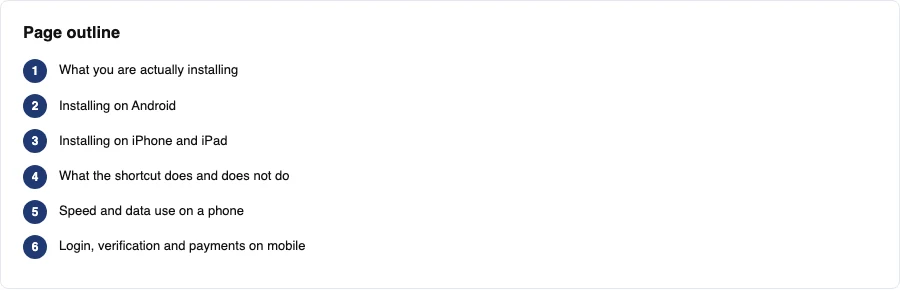
Installing on Android
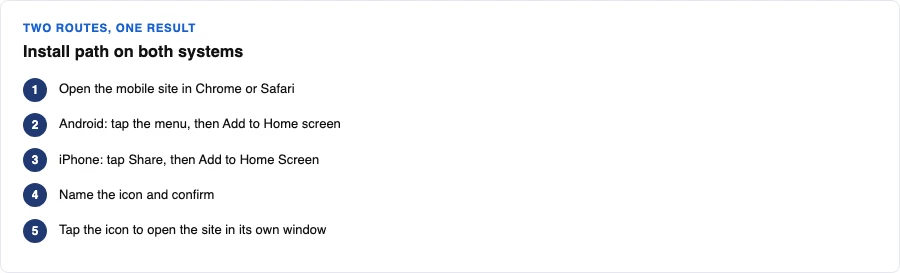
Android handles this better than iOS in one specific way. Chrome will often offer to install the site for you, with a small banner or an install icon in the address bar, and if that appears you can skip the menu entirely.
- Open Chrome and go to the OzzyBet mobile site. Use the version that matches your country if you are in Australia, New Zealand, Canada or Germany.
- Look at the address bar. If a small install icon or an "Install app" prompt appears, tap it and confirm. That is the fastest path and it skips the menu.
- If no prompt appears, tap the three-dot menu in the top right corner.
- Choose "Add to Home screen" from the list. On some Chrome versions it reads "Install app" instead, and both do the same thing.
- Give the shortcut a name you will recognise, then tap Add. The icon lands on your home screen or in your app drawer.
On Samsung Internet the menu is in the bottom right and the option is called "Add page to" followed by "Home screen". Firefox for Android hides it under the three-dot menu as "Add to Home screen" as well. The wording moves around between browsers, and the function is identical in all of them.
One thing worth knowing on Android. If you have Chrome set as your default browser, the shortcut will open in Chrome. If you use Samsung Internet as your default, it opens there. The shortcut follows your default, so if you want a particular browser, set it as default before you create the shortcut.
Installing on iPhone and iPad
On iOS the only browser that can create a home-screen shortcut is Safari. Chrome and Firefox on iPhone will not do it, and this is the single most common reason people report that the option is missing. If you are reading this in Chrome on an iPhone, open the same address in Safari first.
- Open Safari and load the OzzyBet mobile site.
- Tap the share button. On most iPhones it sits in the middle of the bottom toolbar, and on iPads it is near the top of the screen.
- Scroll down the share sheet until you see "Add to Home Screen". It is usually below the row of app icons and above the action list.
- Tap it, edit the name if you want, then tap Add in the top right corner.
- The icon appears on your home screen alongside your other apps.
iOS will not show an install prompt of its own, so the share sheet is the only route. There is also no way to make the shortcut appear in the App Library as a normal app, and no way to give it a custom icon without a third-party shortcut tool.
If you use an iPad, the same steps work, and the shortcut opens in a full-width window. On a tablet the layout is closer to the desktop version than the phone version, which is worth knowing if you play on a bigger screen.
What the shortcut does and does not do
People expect a shortcut to behave like a downloaded app, and the gap between the two causes most of the confusion around this topic. The table sets out what actually changes once the icon is on your home screen.
| Feature | Home-screen shortcut | Native store app |
|---|---|---|
| Available for this brand | Yes, on iOS and Android | No, not published in either store |
| Download size | None, it is a link | Typically tens of megabytes |
| Works offline | No | Partly, for cached screens |
| Updates | Automatic, the site is always current | Manual or automatic store updates |
| Push notifications | Not supported | Usually supported |
| Storage used on device | Effectively zero | App data and cache |
| Removing it | Delete the icon, nothing else changes | Uninstall and clear app data |
The missing piece that surprises people most is notifications. A shortcut cannot send them, so any promotion alert you were expecting has to come by email or SMS instead. If notifications matter to you, that is a genuine limitation of this route and there is no workaround through the browser.
The upside is that there is nothing to keep updated and nothing taking up space. On a phone with limited storage that is a real advantage, and it is the main reason this approach exists at all.
Speed and data use on a phone
The mobile site is built for phone screens, so the load is lighter than the desktop version on the same connection. Pages that carry a lot of game thumbnails are the heaviest, and those are the ones where a slow connection shows first.
I loaded the lobby on a mid-range Android phone over a 4G connection and the thumbnails filled in over a couple of seconds. On hotel wifi the same lobby took noticeably longer, and the shortcut behaved exactly like the browser tab would have. The shortcut itself adds no speed, because it is the same site underneath.
Data use is modest for browsing and higher once you start loading game clients. Live dealer tables are the heaviest thing on the site and they stream continuously while open.
Battery drain follows the same pattern. A slot session on a phone is light. A live dealer session with the screen on and the stream running is closer to watching video, and it will eat a battery accordingly. Plugging in for long sessions is worth the habit.
Login, verification and payments on mobile
The shortcut opens the same account you use on desktop, so there is no separate mobile registration and no second set of credentials. If you have not signed up yet, the registration page walks through the mobile form and the identity documents that follow it.
Logging in from a home-screen shortcut is the same two fields as the browser. What changes is that the session tends to stay open longer, because the stripped-back window is not cleared the way a normal browser tab is.
Identity verification is the part that catches people out on mobile. Photographing a passport or a utility bill with a phone camera is convenient, but a blurry or cropped image gets rejected and the process restarts. Take the photo in good light, get all four corners in frame, and check the file before uploading. The withdrawal page explains why verification matters more than usual if you intend to cash out quickly.
Payments work the same way they do on desktop. The cashier opens inside the same window and the methods on offer match whatever your country edition lists on the payments page.
One practical note on the mobile cashier. Some banks open their own app to approve a transfer, and when you come back the casino tab can reload. That reload is normal and the transaction is not lost. Wait for the balance to update before trying again, or you risk sending the same deposit twice.
Problems people hit, and the fix for each
Most install trouble comes down to the browser you are using or the address you saved. These are the six cases I see most often, with the fix that works in each one.
No Add to Home Screen option
You are almost certainly in Chrome on an iPhone. Switch to Safari and the option appears in the share sheet.
Icon opens the wrong page
The shortcut saves whatever address was loaded when you created it. Delete it, navigate to the login page, and add it again from there.
Icon disappeared after a restart
Check the drawer before recreating it. Some Android launchers move new shortcuts off the home screen and into the app drawer.
Page loads but stays blank
Usually a stale cache. Clear the browser cache for the site, or open it once in a private window to confirm the site itself is fine.
Login will not stick
Private browsing or a strict cookie setting clears the session every time. Allow cookies for the site or leave private mode.
Wrong country edition
You saved a shortcut to a different edition. Delete it and add the one that matches where you are playing.
If none of those match, the problem is more likely to be the connection than the shortcut. Try the same address in a normal browser tab. If it fails there too, the shortcut was never the issue.
Safety, storage and staying current
A shortcut carries no permissions of its own. That is a genuine security advantage over a downloaded app, and it is worth remembering when you see unofficial "OzzyBet app" files offered on third-party sites.
Those files are the real risk here. Because there is no official app, any APK or profile claiming to be one is unverified, and installing it means trusting a stranger with your phone. The home-screen shortcut does everything the app would do, without that exposure. If you have already installed something from a third-party source, remove it and change your casino password.
Staying current is automatic. The shortcut loads the live site every time, so a change to the cashier, the promotions tab or the game lobby shows up the moment it goes live. There is no version number to check and nothing to update manually.
For the offer side of the site, the free spins on mobile page covers how spin promotions are credited and what to check before claiming. The bonus page covers the welcome package, and the full review covers the site as a whole. If you have not opened an account yet, start with registration and come back here for the install.
Common questions
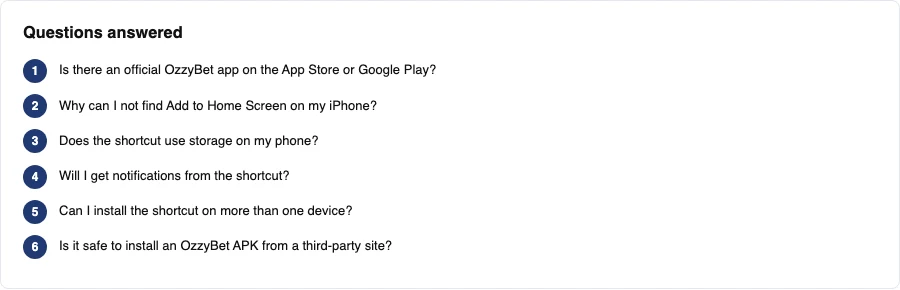
Is there an official OzzyBet app on the App Store or Google Play?
No. There is no published app for this brand in either store. The home-screen shortcut is the supported way to get the site onto your phone, and it does everything the app would do apart from push notifications.
Why can I not find Add to Home Screen on my iPhone?
You are likely using Chrome or Firefox. On iOS only Safari can create a home-screen shortcut. Open the site in Safari, tap the share button, and the option appears in the share sheet.
Does the shortcut use storage on my phone?
Effectively none. The only thing it occupies is the icon on your home screen.
Will I get notifications from the shortcut?
No. A home-screen shortcut cannot send push notifications. Any promotion alerts have to arrive by email or SMS instead, and there is no browser workaround for this.
Can I install the shortcut on more than one device?
Yes. Sessions are separate, so you can add the shortcut on a phone and a tablet and log in on each one independently. Nothing about the install ties the devices together.
Is it safe to install an OzzyBet APK from a third-party site?
No. Since no official app exists, any APK claiming to be one is unverified. Use the home-screen shortcut instead, and if you have already installed a third-party file, remove it and change your password.
Do I need to reinstall the shortcut after the site updates?
No. The shortcut loads the live site each time you tap it, so changes appear automatically. There is no version to update and nothing to re-download.
18+. T&Cs apply. Play responsibly. If gambling stops being fun, contact a support service in your own country, such as Gambling Help Online on 1800 858 858 in Australia, Gambling Therapy at gamblingtherapy.org, or BeGambleAware.